Help
Connect DoorDash to Jooule
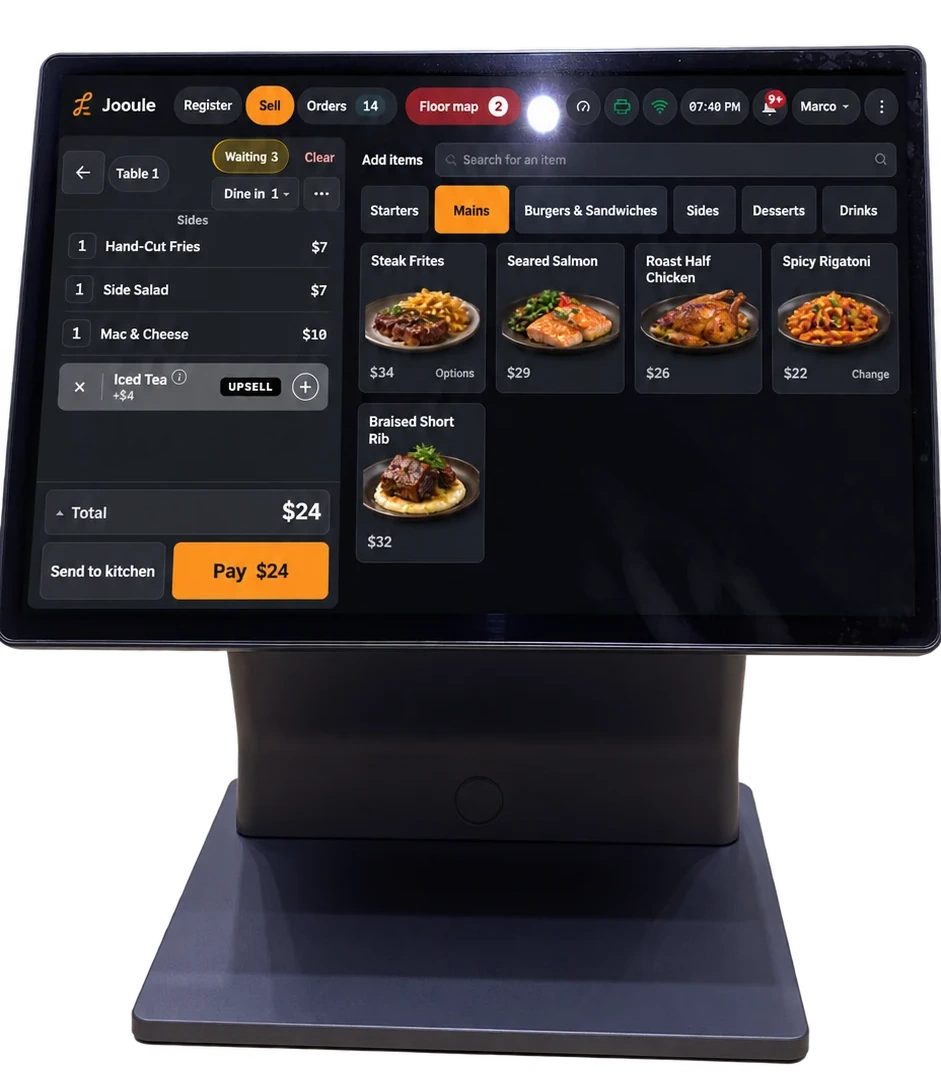
With DoorDash connected, DoorDash orders come straight into your Jooule register and kitchen. Your menu, hours and sold-out items stay in step with DoorDash automatically.
Connect your store
What do I need before I connect DoorDash?
A Jooule manager or owner sign-in for the location, and a DoorDash sign-in as that store’s Business Admin — a Store Operator sign-in can’t connect a store. Your Jooule menu should be ready, since DoorDash checks it before the connection goes live, and the location’s address in Jooule must match the DoorDash store’s address.
How do I connect a DoorDash store to Jooule?
In Jooule, open Manager → Delivery apps and press Add a store on the DoorDash card. Sign in on DoorDash’s own page as the store’s Business Admin and allow Jooule to connect. Back in Jooule, choose the DoorDash store at this location’s address — it’s marked Same address — and press Connect.
What happens after I press Connect?
Jooule sends your menu to DoorDash, and the card shows Checking while DoorDash reviews it — you can leave the page, since Jooule keeps listening and shows the answer on the card. Once DoorDash accepts the menu, the card shows Menu accepted and an Activate button.
What does activating the store do?
DoorDash orders start arriving straight into Orders on the register, printing in the kitchen and coming in already paid. If the store is new on DoorDash, activating also turns it on, so customers can order right away. Any other integration on that DoorDash store stops the moment you activate.
Running it day to day
How do I pause DoorDash orders for a short rush?
On the register, press Busy. Online orders pause across your website and every connected delivery app, DoorDash included, for 20 minutes, 30 minutes or an hour, and Resume now brings them back immediately. If the kitchen is only slow, +15 min for an hour keeps orders coming but adds 15 minutes to the promised time for the next hour.
How do I turn DoorDash off for longer, without pausing everything?
Each connected app has its own switch on the Delivery apps page. Turning DoorDash off there stops DoorDash orders specifically — your website and any other connected app keep taking orders — and it stays off until you switch it back on yourself.
How does a DoorDash order reach the kitchen?
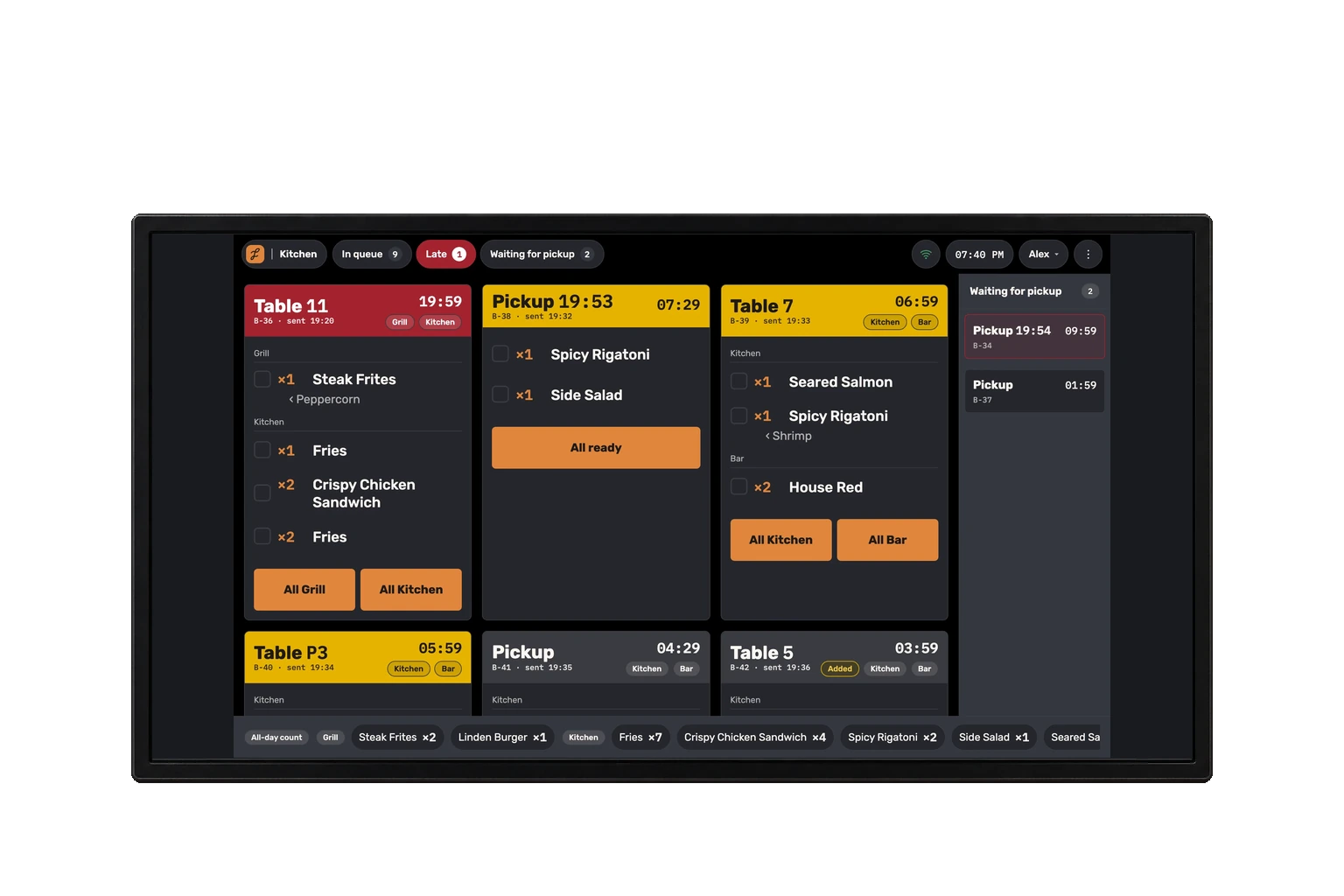
There’s no accept step. Once DoorDash sends an order and Jooule confirms it can be made, it’s already accepted — it prints in the kitchen right away, at the station assigned to it, the same as any other order. The ticket shows DoorDash’s name, its own order code, and the customer’s first name and last initial.
How do I mark a DoorDash order ready?
On the order’s own screen, press Ready once it can be marked ready. That’s the whole action — Jooule tells DoorDash the order is ready for pickup, so it can send the courier at the right time.
How do I cancel a DoorDash order?
Press Cancel on DoorDash on the order’s own screen and choose a reason — Out of stock, Store closed, Kitchen busy or Other. Choosing the reason cancels the order immediately; DoorDash refunds the customer and lets them know, and every kitchen station that already printed the order gets a cancel slip.
How do I mark a dish sold out?
From Manager console → Availability, from the register by pressing and holding a dish tile, or from the kitchen display. Tapping an available item marks it sold out, for the rest of today or a time you choose; tapping a sold-out item puts it back immediately. The change reaches DoorDash on its own.
Do I need to update my hours or holidays on DoorDash separately?
No. Your weekly hours and your holiday exceptions, both set once in Settings, are shared everywhere and reach DoorDash automatically whenever they change. DoorDash’s advertised closing time may show a little earlier than what you set, when your prep time needs it.
If something goes wrong
DoorDash says the sign-in isn’t a Business Admin — what do I do?
You signed in to DoorDash as a Store Operator. Press Add a store again on the DoorDash card and sign in with the account that runs the store.
DoorDash wasn’t connected — what happened?
Either the sign-in was cancelled, or the link expired — it works once, for 10 minutes. Nothing changed on your side; press Add a store again.
A store can’t be connected, or shows the wrong address — what do I do?
If DoorDash marks a store “Not available to connect,” contact DoorDash merchant support about that store. If it shows “No Jooule branch at this address,” the DoorDash store’s address doesn’t match this location’s address in Jooule — connect it from the matching location, or correct the address. If DoorDash finds no store at all for the account, use “Not on DoorDash yet? Sign up” on the connect screen to create one, then connect it.
A store shows it’s connected elsewhere, not yet activated, or that DoorDash ended the connection — what do I do?
“Currently connected to another system” — you can still connect; that connection ends the moment you activate the store in Jooule. “Connected — DoorDash hasn’t activated it yet” means the connection is live but DoorDash hasn’t opened the store for orders — DoorDash merchant support can open it, and nothing needs to change in Jooule. If DoorDash stopped the connection itself, follow the reason it gives, then press Start over.
DoorDash didn’t accept my menu — what do I do?
The card shows Menu blocked with DoorDash’s reason. Fix what DoorDash names in the Jooule menu editor, then press Send the menu again — Open in DoorDash shows the menu on DoorDash’s own side.
Activation failed — what do I do?
Follow the reason DoorDash gives on screen, then press Start over.
My till lost its connection — does that affect DoorDash?
If every device at the restaurant stops checking in for a few minutes while you’re open, Jooule tells DoorDash the store can’t take orders for now, and the Delivery apps card shows Offline — printers silent. Nothing needs fixing beyond getting your till and its connection working again — the store reopens itself on DoorDash the moment a device reports in.
Who do I contact for help?
For anything about Jooule: hello@jooule.com. For DoorDash merchant support: 855-222-8111.
See Jooule with your own menu.
Explore the register, server app and kitchen display with the dishes you serve.