Set the pace between courses
Choose manual firing, supported ready-triggered progression or expediter control, with configured delays between courses.
Automatic progression requires supported kitchen-screen operation. Paper-only kitchens use manual pacing.
Starters now, mains later
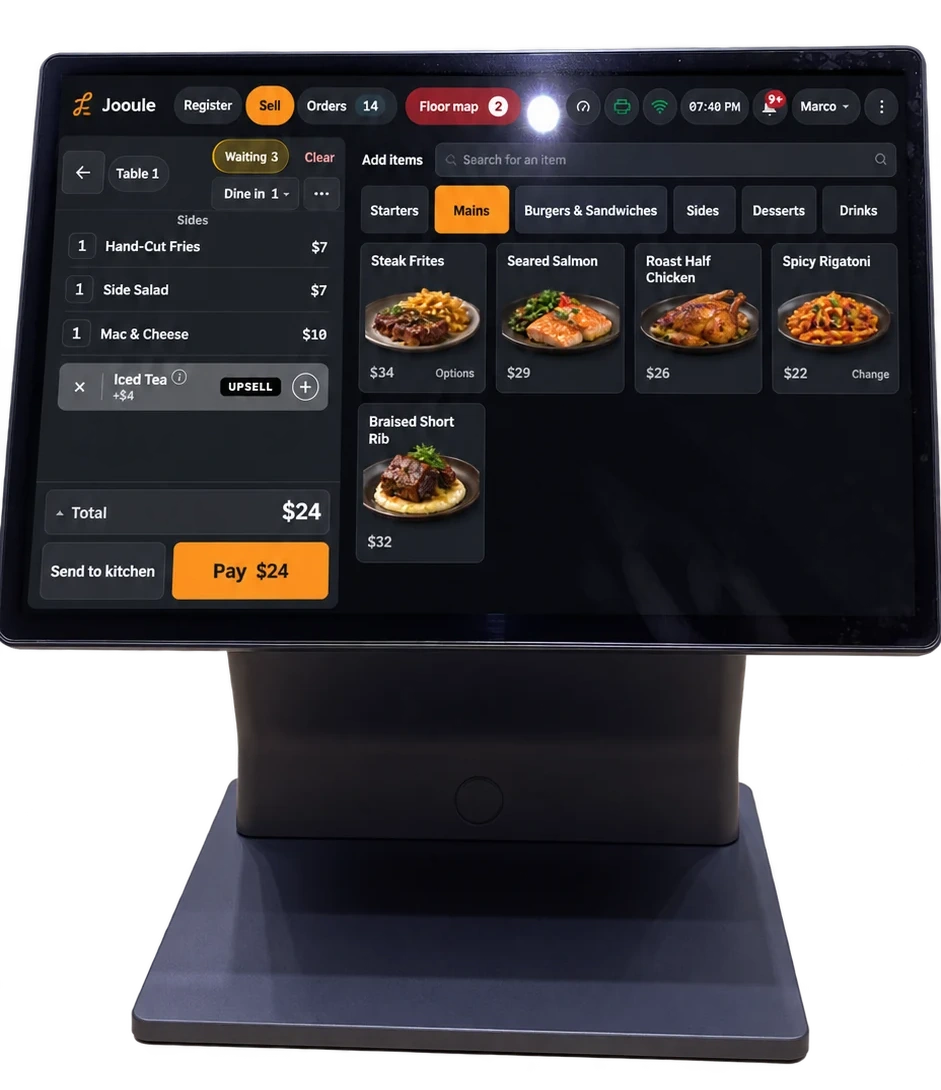
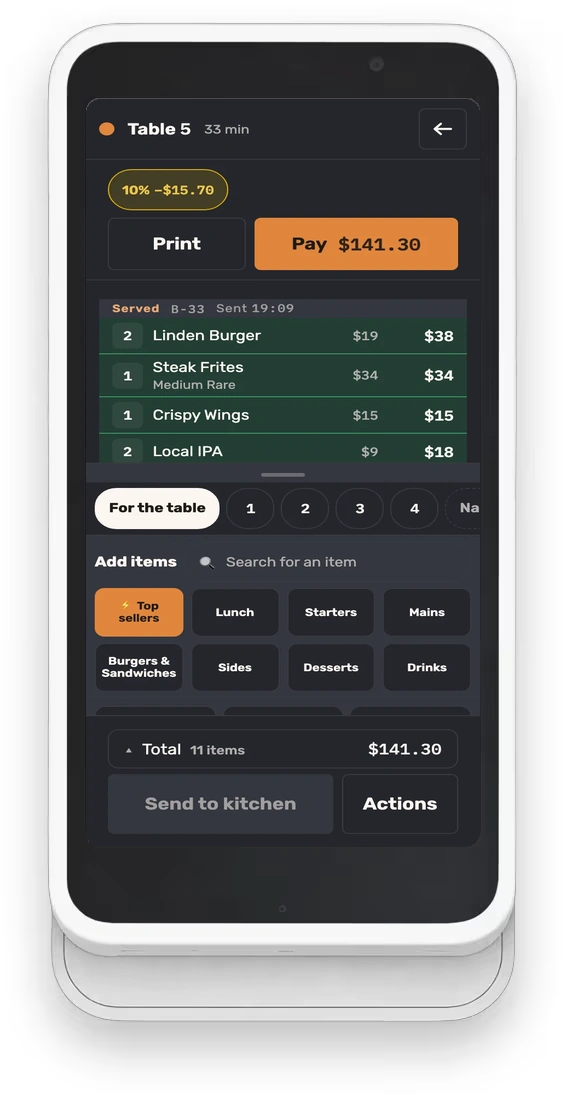
Assign dishes to courses and choose which courses reach the kitchen when sending the order.
Choose what the kitchen prepares next
Move a ticket ahead of another, return it to automatic priority or undo your own move in the shared kitchen queue.
Changing priority does not change the promised ready time or release held work.
Hold a round before sending
Keep a round on hold until staff send it, or set a timed release where supported.
Holding a service round is separate from a guest placing a prepaid order for a future date.
Put separately packed sides together
Group separately packed sides at the end of the ticket, with quantities, dish context and a reminder under the dish.
Organize tickets for each station
Set a restaurant default and station overrides for supported dish, category and section ordering, then preview and test-print the result.
These are structured organization controls, not a free-form font, column or page-layout designer.
Carry allergy notes to the kitchen
Capture relevant guest allergy notes and keep the warning with the table and the kitchen’s preparation information.
The system communicates recorded warnings; staff still need to verify ingredients and preparation. It does not certify a dish as allergy-safe.
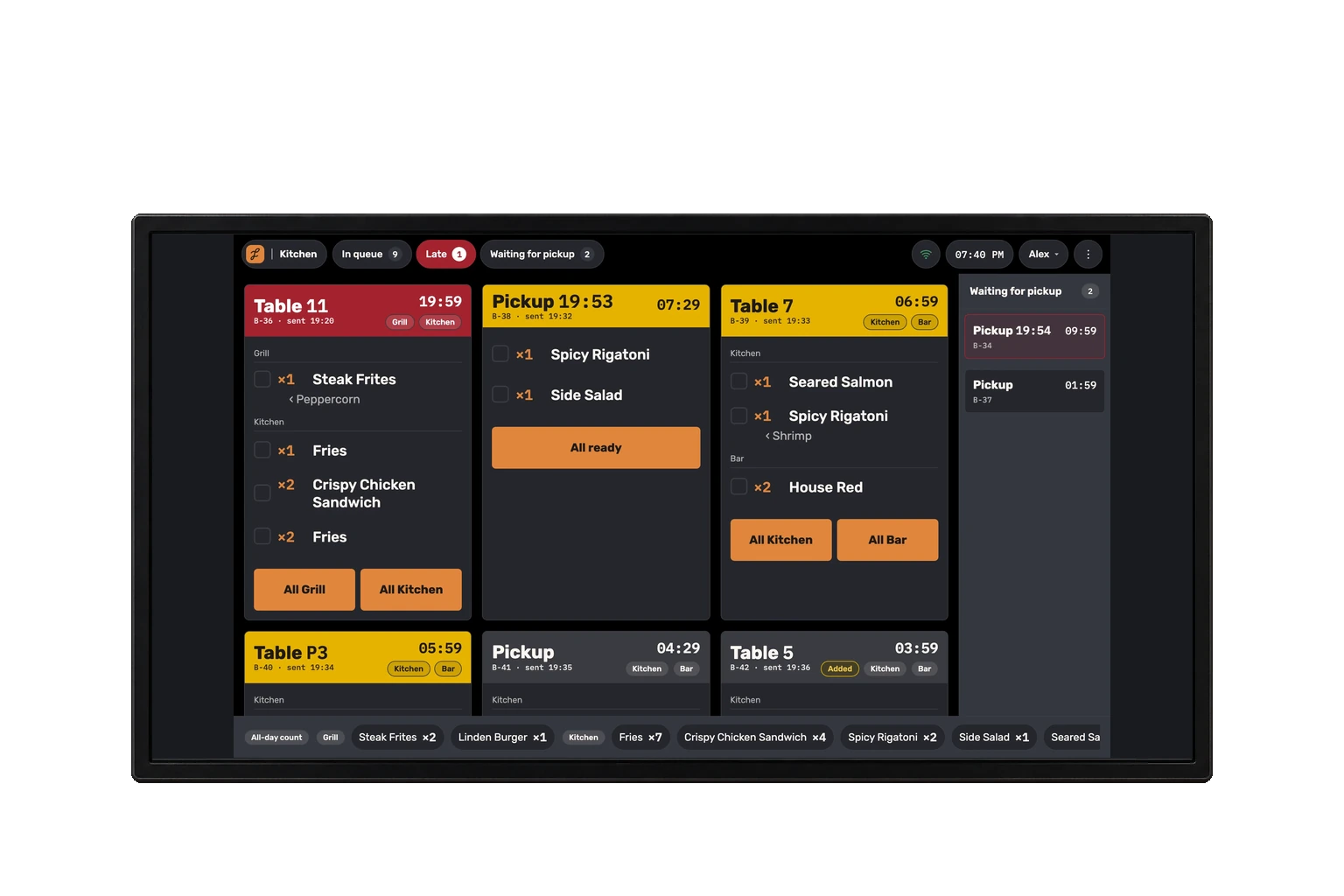
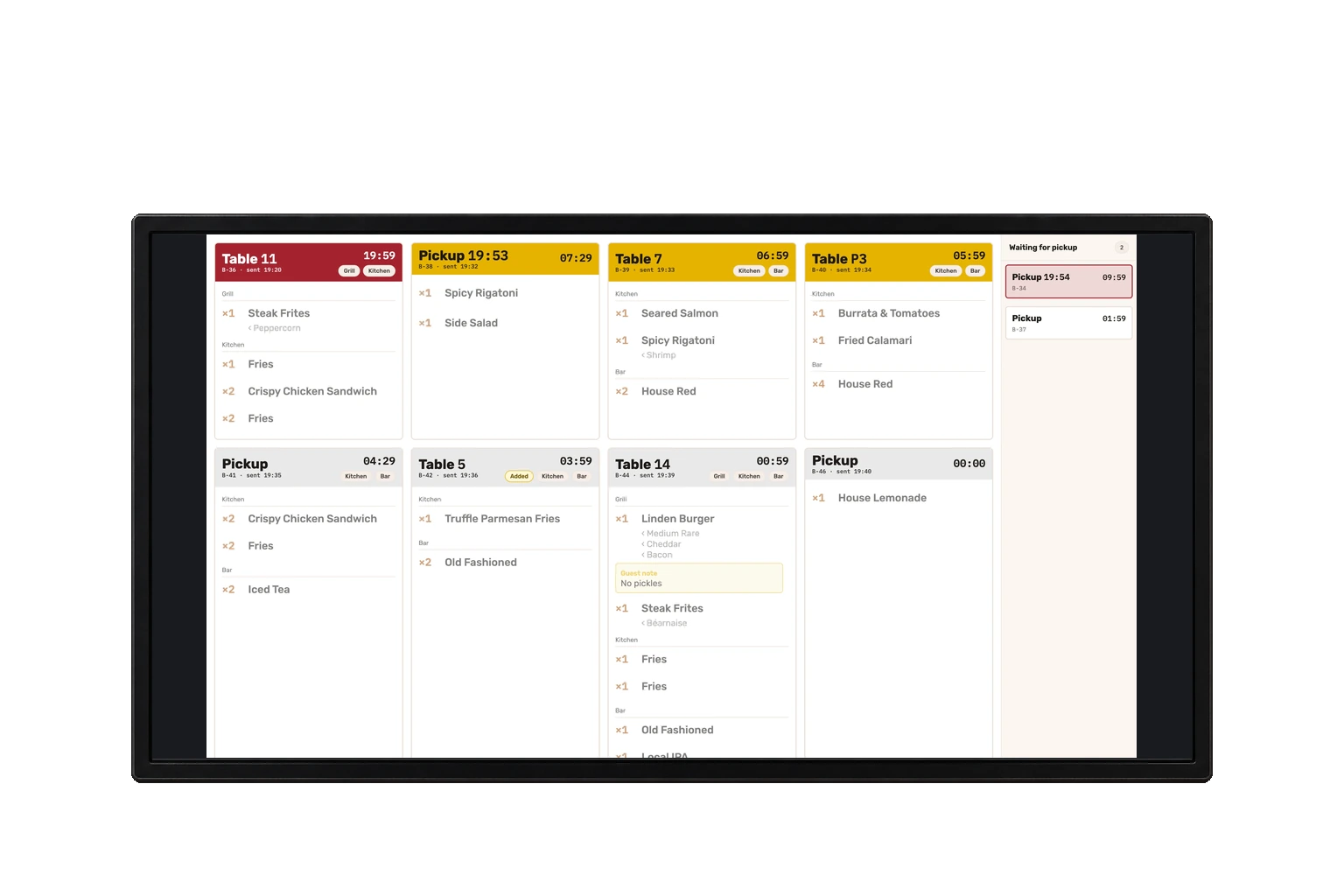
A shared kitchen queue
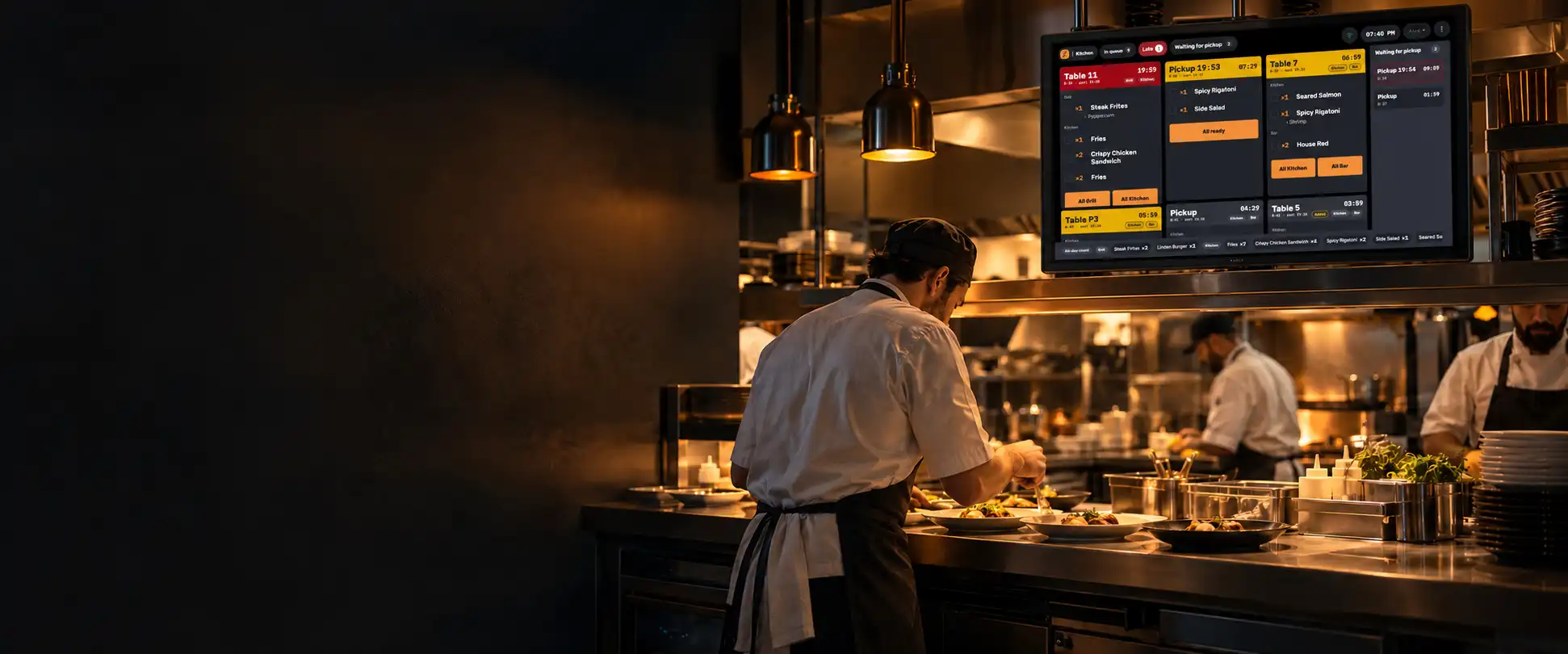
See station work in a shared queue, with changed and late tickets drawing attention where action is needed.
From preparation to pickup
Mark a dish or station ready, see station totals and follow orders waiting for pickup with a timer.
Station completion has a short undo window; this is not a historical ticket-recall feature.
Kitchen and ready-order wall displays
Show the kitchen queue or ready order codes on a read-only wall display.
Packing labels for named meals
Keep named portions identifiable with separate packing labels where the order uses that meal structure.
Know when printing needs help
See printer warnings, spaced retry attempts and staff resend controls for tickets already accepted by the server.
Requires an internet connection for new orders. Retrying an accepted print job is not offline POS operation.
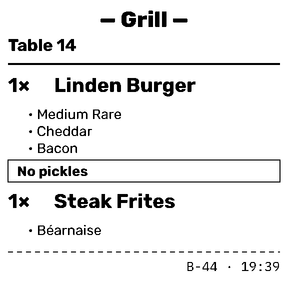
Each ticket reaches its station
Route image-based tickets to the right station and optionally print a whole-order slip at the register.
Requires a compatible 80 or 58 mm ESC/POS printer and the supported network or USB connection.